> For the complete documentation index, see [llms.txt](https://helpdocs.yoxel.com/llms.txt). Markdown versions of documentation pages are available by appending `.md` to page URLs; this page is available as [Markdown](https://helpdocs.yoxel.com/teamwork/yoxel-for-gmail/authorizing-yoxel-to-access-gmail.md).
# Authorizing Yoxel to access Gmail
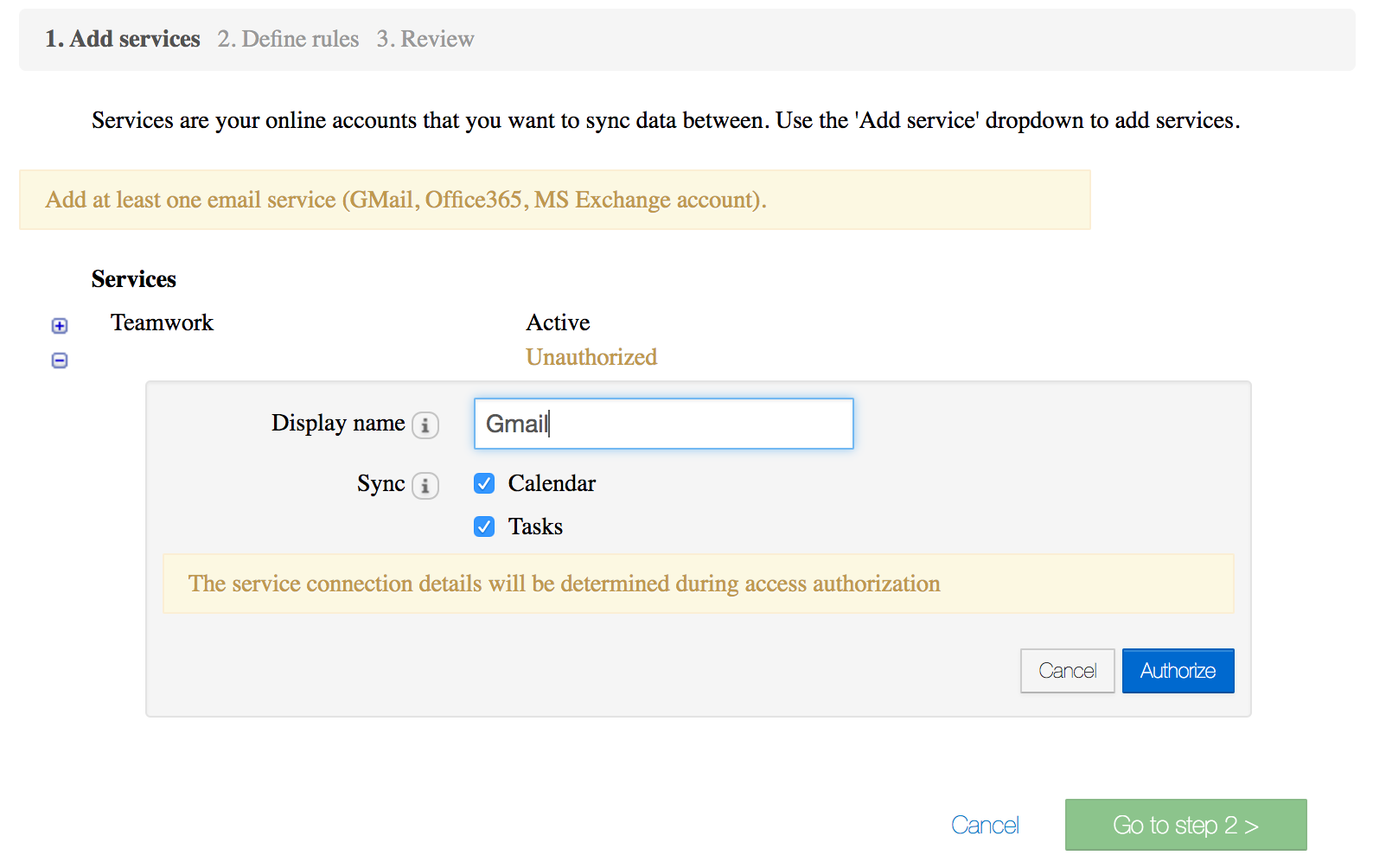
To authorize Yoxel to access your Gmail account:
1\. Choose G Suite in the **“Add service”** drop down menu
2\. Specify how you would like to name the Gmail service in your Yoxel app instance and select you would like to sync Calendar and/or Tasks
3\. Click the Authorize button
After you have clicked the **Authorize** button you will be redirected to the Google account selector page. On that page select a Google account that you would like to sync with Teamwork.
After you have selected the Google account you would like to sync you will be redirected to the Google authorization page that will ask you to provide Yoxel an offline access to your Google account. Please click Accept, you will then be redirected back to the Yoxel Sync app.